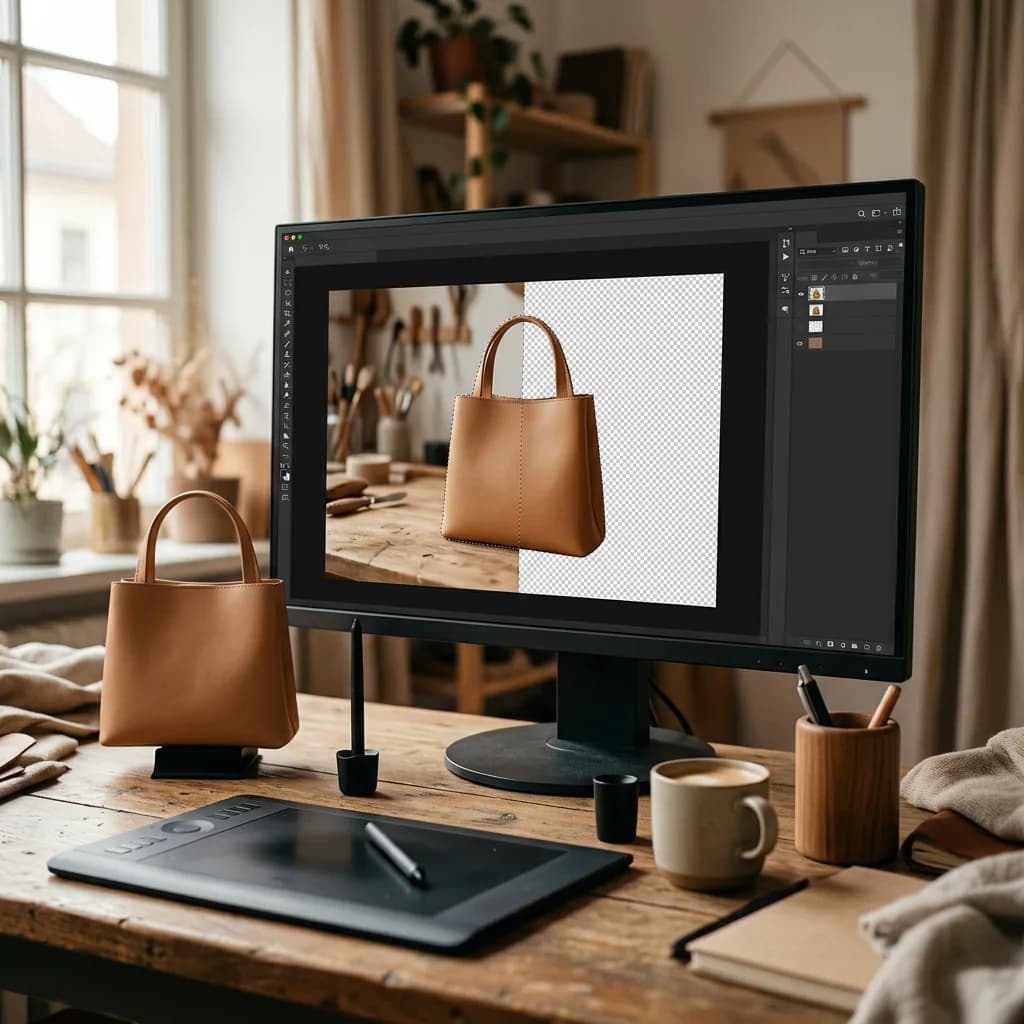
Photoshop gives you four main ways to remove a background, from a one-click button to a hand-drawn Pen Tool path. Here's how each one works step by step, which one to use for which product, and how to finish the edge so the cutout looks professional on white.
Removing a background is the single most common edit in product photography. Every marketplace main image, every catalog cutout and every lifestyle composite starts with it. Photoshop offers several ways to do it, and the right one depends on the product in front of you: a one-click button is fine for a mug on a plain backdrop, while a jewelry piece or a model's hair needs a very different approach. This guide walks through the four methods professional retouchers actually use, step by step, then covers how to clean the edge, place the product on pure white, and export it correctly.
Before You Start: Work Non-Destructively
Whatever method you choose, don't delete the background pixels. Hide them with a layer mask instead. A mask lets you paint back anything you cut off by mistake, refine the edge later, and reuse the original if a client changes their mind. Three quick setup steps:
- Duplicate the original layer (Ctrl+J / Cmd+J) so the untouched photo is always one click away.
- Work at full resolution. Downsizing first makes edges look fine on screen and soft in print or zoom views.
- Zoom to 100% when judging edges. A cutout that looks clean at "fit to screen" can hide halos and jagged steps.
Method 1: The One-Click "Remove Background" Button
Photoshop's fastest option uses Adobe's AI to find the subject and mask everything else in a single click.
- Open the image and select the photo layer.
- Open Window › Properties. Under Quick Actions, click Remove Background. In recent versions the same button also appears on the floating Contextual Task Bar under the image.
- Photoshop converts the layer, detects the subject and adds a layer mask that hides the background.
- Toggle the mask off and on (Shift-click the mask thumbnail) and check the edges at 100%.
Best for: products with clear, high-contrast edges on a plain background: boxes, bottles, shoes, electronics. Watch out for: it sometimes includes shadows or reflections as part of the "subject," cuts into thin parts like straps and cables, and guesses on objects that blend into the backdrop. Treat the result as a first draft and refine the mask with a soft brush where needed.
Method 2: Select Subject + Select and Mask (Best for Hair and Soft Edges)
This is the workhorse method for anything with fine or soft edges: models, fur, plush toys, knitwear, feathers.
- Go to Select › Subject. Photoshop draws an AI selection around the main subject.
- Open Select › Select and Mask (Ctrl+Alt+R / Cmd+Option+R). Switch the view mode to On White or On Black so edge problems are easy to see.
- Click Refine Hair if there's hair or fur, then use the Refine Edge Brush along any wispy areas the AI missed.
- Use the Quick Selection or Brush tool inside the dialog to add or subtract solid areas.
- Adjust the global sliders sparingly: a little Smooth for jagged edges, a slight Shift Edge (around −10% to −20%) to pull the edge inward and lose background fringe.
- Tick Decontaminate Colors if the old background is tinting the edge, then set Output To: New Layer with Layer Mask and click OK.
Best for: hair, fur and semi-transparent edges. Watch out for: over-smoothing, which turns natural hair into a "helmet," and Decontaminate Colors on products whose edge color is genuinely close to the old background. For a deeper look at soft-edge work, see our image masking guide.
Method 3: The Pen Tool (Most Precise for Hard-Edged Products)
For products with hard, defined edges, the professional standard is still a hand-drawn vector path. It's slower, but it produces perfectly smooth, crisp edges that AI selections can't match, and the path can be saved and reused.
- Select the Pen Tool (P) and set its mode to Path in the options bar.
- Click to place anchor points around the product. Click and drag to create curves, keeping points as few as possible: fewer points mean smoother curves.
- Place the path one or two pixels inside the product edge. This avoids picking up the background color along the outline.
- Close the path by clicking the first point, then save it in the Paths panel (double-click "Work Path" and name it).
- Press Ctrl+Enter / Cmd+Enter to turn the path into a selection, then click the Add Layer Mask icon in the Layers panel.
- For interior gaps, such as the inside of a mug handle, draw extra paths and set them to subtract from the shape.
Best for: jewelry, watches, electronics, furniture, packaging, cosmetics: anything with hard edges where a single soft or wobbly pixel shows. Watch out for: hair and fur, which a path can't follow. The difference between a path-based cutout and a mask-based one is explained in our clipping path vs background removal guide.
Method 4: Color Range, Magic Wand and Quick Selection (For Simple Backgrounds)
If the product was shot on an even, solid-color backdrop, you can select the background instead of the subject.
- Go to Select › Color Range, click the backdrop with the eyedropper, and raise Fuzziness until the whole backdrop turns white in the preview without eating into the product.
- Alternatively, use the Magic Wand with a moderate Tolerance (around 20 to 32), or the Object Selection and Quick Selection tools to paint the area you want.
- Invert the selection (Select › Inverse, Shift+Ctrl+I / Shift+Cmd+I) so the product is selected, then add a layer mask.
Best for: fast cleanup on studio shots with a seamless backdrop. Watch out for: products whose colors appear in the background, white products on white, and shadows that fade gradually into the backdrop.
Which Method Should You Use?
| Product | Best method | Why |
|---|
| Boxes, bottles, simple shapes | Remove Background, then refine | Fast and usually accurate on clear edges |
| Jewelry, watches, electronics | Pen Tool | Crisp, perfectly smooth edges |
| Models, hair, fur, plush | Select Subject + Select and Mask | Handles soft and semi-transparent edges |
| Products on a solid-color backdrop | Color Range | Selects the backdrop in one pass |
| Glass, liquids, smoke | Pen Tool plus channel masking | Needs transparency preserved, not just a cutout |
Cleaning Up the Edge
Most cutouts that look "off" fail at the edge, not the shape. Before you call it done:
- Check for halos: place a dark layer and a white layer under the product in turn. A light rim on dark or a dark rim on white means background fringe is still there.
- Feather only slightly: a 0.3 to 0.5 pixel feather softens a too-sharp path edge so it looks photographic. More than that makes the product look blurry.
- Paint the mask, don't erase: use a soft black brush on the mask to hide leftover background and white to bring back cut-off detail.
- Keep the real shadow if you need one: marketplaces and catalogs often look better with a natural or recreated shadow, which you can add on its own layer after the cutout.
Placing the Product on Pure White
For Amazon and most marketplace main images, "white" means exactly RGB 255, 255, 255. An off-white background, even 250, 250, 250, can get a listing flagged.
- Create a new layer below the product and fill it with pure white (Edit › Fill › White).
- Check with the Info panel or the eyedropper that the background reads 255, 255, 255 everywhere.
- Make sure the product fills the frame as the platform requires. Amazon asks for the product to fill 85% or more of the main image.
Each marketplace has its own rules, covered in our Amazon product image requirements guide.
Exporting the Result
- Transparent background: File › Export › Export As, choose PNG with transparency on. Use this for websites, mockups and composites.
- White background: flatten a copy and export as JPEG in sRGB for marketplaces, which mostly don't accept transparency.
- Print or a client's layout team: keep a PSD or TIFF with the mask or saved path intact so they can reuse the cutout.
Keyboard Shortcuts That Speed This Up
- Ctrl+J / Cmd+J: duplicate the layer before you start.
- P: Pen Tool. Ctrl+Enter / Cmd+Enter: turn the path into a selection.
- Ctrl+Alt+R / Cmd+Option+R: open Select and Mask.
- Shift+Ctrl+I / Shift+Cmd+I: invert the selection.
- Alt-click / Option-click the mask thumbnail: view the mask itself in black and white, where leftover specks and gaps are easy to spot.
- Shift-click the mask thumbnail: turn the mask off and on to compare with the original.
- X: swap black and white while painting on the mask. [ and ]: shrink or grow the brush.
Common Mistakes to Avoid
- Erasing pixels instead of masking: the Eraser and Background Eraser tools are permanent. Masks are reversible.
- Trusting the one-click result unchecked: AI cutouts regularly clip straps, cables, transparent parts and fine details.
- Leaving gaps inside the product: handles, loops, chair backs and jewelry settings often keep a patch of the old background.
- Over-smoothing hair: a perfectly smooth outline on a model looks cut out. Hair needs a soft, varied edge.
- Inconsistent results across a set: twenty products cut out twenty slightly different ways make a category page look uneven.
When to Outsource Background Removal
Removing one background in Photoshop takes a few minutes. Removing hundreds, each with a clean edge, consistent shadows and the exact white a marketplace requires, takes days of skilled work. That's the point where many brands hand it off. Our background removal service and hand-drawn clipping path service deliver marketplace-ready cutouts at any volume, with every image checked at 100%. Want to compare it with your own results? Start a free trial and we'll edit your first images at no cost.